In the first post of this series, I demonstrated how to model the data for this project. This post walks though using the SQL Data Tools to set up the model. Open the SQL Data Tools and select Analysis Services Multidimensonal and Data Mining Project. Name your project (I named mine SequenceClustering) and enter a location to save the files. Click Ok

The SQL Data Tools now opens the workspace that you will use to create your model. Right click on Data Sources to use the wizard to tell the tool where your data is stored.

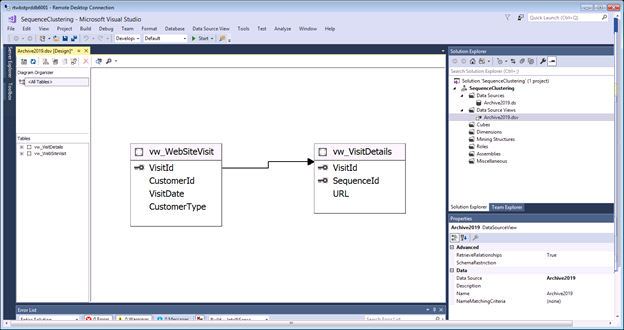
Now you are going to tell SQL Data Tools how your data is structured. Right click on Data Source Views. This will open a wizard that will ask you to confirm your data source and then ask you to select the objects from that data source that you want to use.
For this example, there are 2 tables:
Right click on Mining Structures and click Create New Mining Structures. This opens a wizard to walk you through creating the structure.
Tell the wizard to create the structure from an existing relational database or data warehouse and click next.

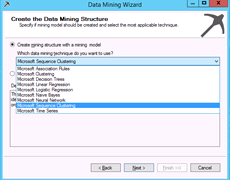
Select Microsoft Sequence Clustering from the data mining technique drop down and click Next
Now we set up the Case and Nested table roles. VisitDetails is the nested table and WebSiteVisit is the case table. Once you click the right boxes, click next.

Now the wizard will ask you what you want to be able to predict from this model and what you want to use as input to create those predictions.

In the next step, the model is confirming the data types

Click next


At this end of this process, you should have something that looks like this:

Now that you’ve created the data mining objects, it’s time to let your model read the underlying data and make sense of it. Right click on the model and click process.

After you click Run, the model will start reading data and creating sequence clusters.
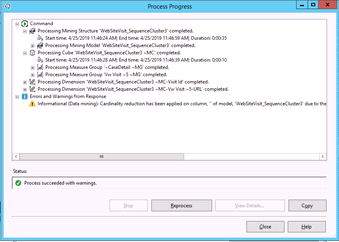
This processing provides data to the model so it can determine the appropriate clusters for the sequences. After it is done, you will be able to browse and query the data. I will walk you through that in the next post.

 Learning More SQL